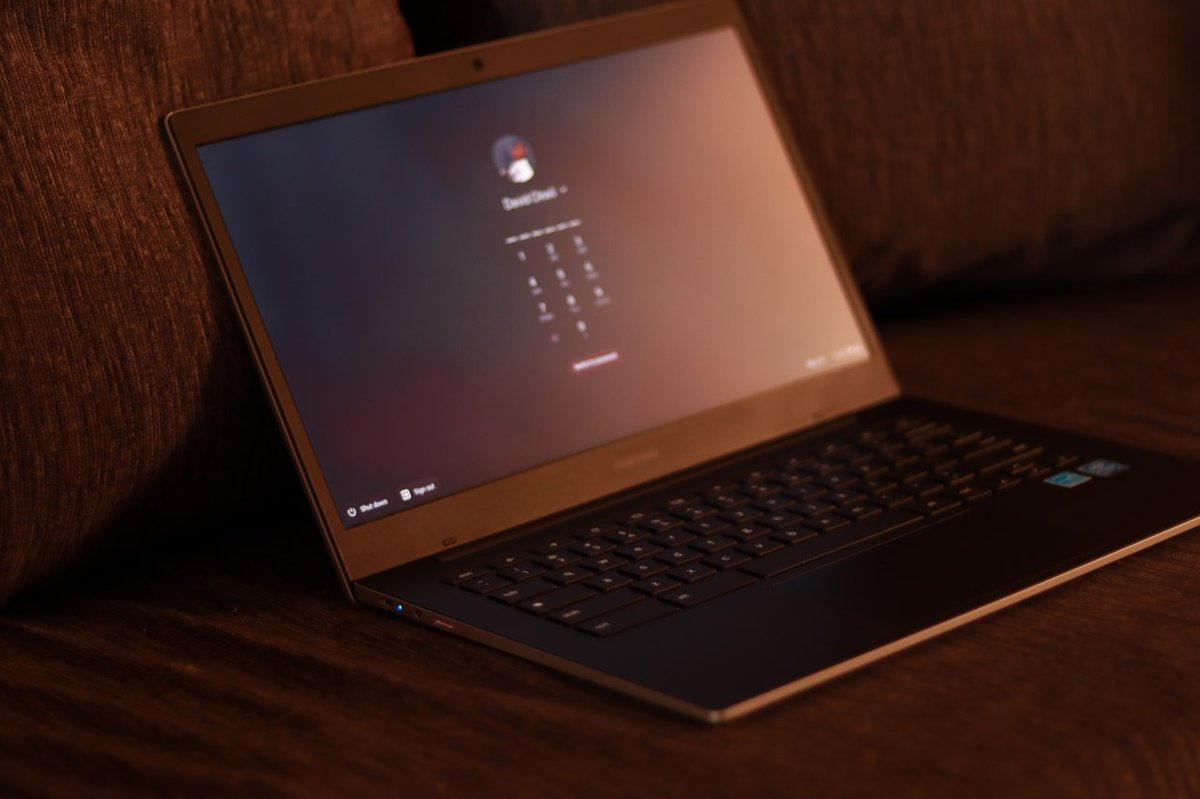
Few devices nail the "instant-on" experience quite like a Chromebook. You open the lid, and boom—you're right back where you left off, often in mere seconds. This seamless responsiveness isn't magic; it's the result of carefully engineered power states and, most notably, its highly optimized sleep mode. If you’ve ever wondered how your Chromebook manages to sip battery power while keeping everything ready at a moment’s notice, you're about to get the full story. This guide is all about Understanding Chromebook Power States and Sleep Modes, pulling back the curtain on how these devices manage energy to deliver that signature snappy performance and impressive battery life.
We’ll explore the distinct advantages of its suspend-to-RAM state, how it automatically and manually activates, and what’s happening under the hood. More importantly, we’ll equip you with the knowledge to customize these settings, troubleshoot common issues, and make informed choices to extend your battery life and protect your work.
At a Glance: The Chromebook's Power Secret Revealed
- Primary Sleep Mode: Chromebooks primarily use a "suspend-to-RAM" state, often called S3. This means it powers down most components but keeps your entire active session (apps, tabs, data) stored in memory.
- Instant Wake-Up: The biggest benefit is the ability to resume your work almost instantly, typically within 1-2 seconds, exactly where you left off.
- Battery Saver: It significantly reduces power consumption compared to being fully active, extending the time between charges.
- Automatic & Manual: Your Chromebook goes to sleep automatically when the lid is closed or after a period of inactivity. You can also trigger it manually by closing the lid or briefly pressing the power button.
- Customizable (Partially): You can adjust how quickly your Chromebook sleeps or if it stays awake when plugged in through the Chrome OS settings.
- Not a Full Shutdown: Sleep mode uses a small amount of power. For very long periods of non-use, turning the Chromebook off completely is still the most power-efficient option.
- Data Vulnerability: If your battery dies while in sleep mode, any unsaved work will be lost. Save frequently!
The Brains Behind the Instant-On: Suspend-to-RAM Explained
When you close your Chromebook's lid, or it decides it's time for a nap, it doesn't just "turn off" the screen. Instead, it enters a highly efficient low-power state known as suspend-to-RAM, or often simply referred to as S3 sleep mode. Think of it like pausing a video game. The game isn't over, all your progress is saved, and you can jump right back in without waiting for it to reload from the beginning.
Unlike older laptops that might save everything to the hard drive (a process called hibernation, which we'll touch on later) and then fully shut down, Chromebooks keep your entire current session — every open tab, running app, and even unsaved document — alive in its Random Access Memory (RAM). This approach is tailor-made for speed, efficiency, and the "cloud-first" nature of Chrome OS, ensuring you're always just a lid-flip away from productivity.
Why Chromebook Sleep Mode Just Works: Key Advantages
The design philosophy behind Chromebook power states prioritizes a seamless user experience. This focus on "instant-on" isn't just a marketing slogan; it translates into tangible benefits you experience every day.
Extended Battery Life: Sipping, Not Gulping Power
One of the most immediate advantages of this intelligent sleep mode is its impact on your Chromebook's battery life. When in suspend-to-RAM, the vast majority of your device's components—like the display, the main processor, and storage drives—power down or enter ultra-low power states. Only the RAM and a few critical circuits remain active, drawing minimal power to maintain your session data. This dramatically extends the time your Chromebook can last off the charger, even when not actively in use. You can leave it unattended for hours, sometimes even a full day, and come back to find a healthy battery percentage still waiting.
Lightning-Fast Resume: Back to Business in a Blink
This is perhaps the most celebrated feature of Chromebooks. Thanks to suspend-to-RAM, waking your device from sleep is practically instantaneous. You open the lid, press a key, or tap the trackpad, and within 1-2 seconds, your login screen (or even your unlocked desktop, if you've set it up that way) greets you. There's no waiting for the operating system to boot up, no reloading applications from scratch. This rapid resume eliminates frustrating delays, making your workflow smoother and more productive throughout the day.
Your Session, Preserved: Never Lose Your Place
Imagine closing your laptop for a meeting, only to return and find all your tabs gone and apps needing to restart. Annoying, right? Chromebook sleep mode ensures that scenario is a distant memory. Because your active session is held in RAM, everything you were doing—every website you had open, every document you were editing, every application running in the background—is precisely as you left it. It's like pressing pause on your entire digital workspace, ready for you to unpause and pick up exactly where you left off, saving you valuable time and mental energy.
Background Tasks: The Silent Helpers
While sleep mode is designed to conserve power, it's not a complete blackout. Select background tasks are often allowed to continue in a limited capacity. This might include syncing data to the cloud, fetching urgent notifications, or running essential system updates. This intelligent flexibility ensures that your Chromebook stays reasonably up-to-date and connected even when "asleep," without significant battery drain. You might return to your Chromebook after a short break to find your latest documents already synced or a notification waiting, enhancing the overall convenience.
How Your Chromebook Decides to Catch Some Zzz's
Your Chromebook is pretty smart about managing its power. It can enter sleep mode both automatically and with a little nudge from you. Understanding these triggers helps you take control of your device's power behavior.
Automatic Naptime: When Your Chromebook Takes a Break
The most common way your Chromebook slips into sleep mode is automatically.
- Lid Closed: The moment you close the lid, your Chromebook immediately enters its low-power suspend-to-RAM state. This is a failsafe, ensuring that when you pack up, your device isn't just idling and draining battery in your bag.
- Inactivity Timer: If you leave your Chromebook open and untouched for a certain period, it will dim the screen and then, after another set interval, enter sleep mode. This timer is fully customizable in your settings, allowing you to decide how long it waits before conserving power.
Manual Snooze: Taking Control
Sometimes you want your Chromebook to go to sleep now, without waiting for a timer.
- Close the Lid: This is the quickest and most intuitive manual trigger. Just snap the lid shut, and your Chromebook will instantly transition to sleep.
- Brief Power Button Press: A short press and release of the physical power button will also send your Chromebook directly into sleep mode. This is handy if you're stepping away for a moment but want to keep the lid open (perhaps to quickly glance at notifications that might pop up on an external monitor).
Imagine you're taking a quick coffee break from a marathon writing session. Instead of fully shutting down or just leaving it open to drain, a simple lid closure or a tap of the power button preserves your entire workspace and battery, ready for your return.
Under the Hood: The Steps of a Chromebook Sleep Cycle
While it seems instantaneous, a Chromebook's transition into and out of sleep mode involves a precise sequence of events designed for efficiency.
- System Idling: The process begins when the system detects a period of inactivity. This could be you closing the lid, or the inactivity timer running out. The operating system identifies that no active user input is occurring.
- Power Reduction: Chrome OS then initiates a command to reduce power to most hardware components. The display turns off completely, the main processor slows down or pauses execution, and non-essential peripherals (like USB ports that aren't actively in use) may have their power supply cut.
- Memory Retention: Crucially, power to the Random Access Memory (RAM) is maintained. The contents of your RAM – which includes your entire active session, open apps, browser tabs, and unsaved data – are preserved. This is the core of the suspend-to-RAM state, ensuring instant recall.
- Partial Wake-Ups: Even in sleep mode, a Chromebook isn't entirely dormant. It may briefly wake up for essential background tasks. For instance, the Wi-Fi card might periodically activate to check for incoming notifications, sync a small amount of data to the cloud, or verify if a system update is available. These partial wake-ups are extremely brief and power-efficient, designed to keep your device minimally updated without significantly draining the battery.
When you interact with your Chromebook again (open the lid, press a key), the system quickly reverses these steps, restoring power to components and bringing your session back to life almost instantly.
Tailoring Your Chromebook's Downtime: Customizing Power Settings
While Chromebooks are optimized out-of-the-box, Chrome OS provides straightforward settings that allow you to fine-tune how your device handles sleep and power management. These adjustments can help you maximize battery life or ensure your device stays awake when you need it to.
To access these options, navigate to: Settings > Device > Power.
Here you'll find a few key settings:
- "When idle, dim the screen": This slider allows you to choose how long your Chromebook waits before dimming the screen due to inactivity. A shorter duration can conserve a bit more power, while a longer one might be preferable if you often read long articles without touching the trackpad.
- "When idle, sleep": This is the critical setting for controlling sleep mode. You can set the duration (e.g., 5 minutes, 10 minutes, 30 minutes) after which your Chromebook will enter suspend-to-RAM if no activity is detected. A shorter timeout means better battery life, but might put your Chromebook to sleep too quickly if you're just stepping away momentarily. Experiment to find what works best for your habits.
- "Keep display on while plugged in": This toggle is incredibly useful. If you enable it, your Chromebook will not enter sleep mode (or even dim the screen) when it's plugged into power, regardless of inactivity. This is perfect for when you're using your Chromebook as a secondary monitor, running a long download, or giving a presentation. When unplugged, the idle settings will still apply.
The Limits of Customization
It's important to understand that fully disabling sleep mode on a Chromebook is generally not possible, nor is it recommended. The suspend-to-RAM state is fundamental to the Chromebook's efficiency and instant-on experience. Attempting to keep it fully awake indefinitely while unplugged would lead to rapid battery drain and potentially overheating.
Some third-party Chrome extensions, such as "Keep Awake," offer more granular control over preventing sleep mode, even when unplugged. While they can be useful for specific scenarios (like continuous background processes), use them with caution. Overriding built-in power management can lead to faster battery degradation and unexpected power issues if not used judiciously. Always download extensions from reputable sources and be aware of their permissions.
Spotting a Sleeping Chromebook: Indicators to Look For
How do you know if your Chromebook is truly asleep or just experiencing a temporary blackout? Here are the tell-tale signs:
- The screen turns off completely. This is the most obvious visual cue. There should be no backlight, no dim glow—just a black panel.
- The lid is closed. If the lid is shut, your Chromebook is almost certainly in sleep mode (unless it's just booting up or shutting down).
- The device is silent. You won't hear any fan noise (if your model has one), no system alerts, or audio playing. It's truly quiet.
- Wakes within 1-2 seconds. This is the ultimate test. Upon opening the lid, pressing any key, tapping the trackpad, or pressing the power button, your Chromebook should spring back to life almost instantly, typically displaying the login screen. If it takes longer (e.g., 10-20 seconds with a Chrome OS logo), it might have fully shut down or encountered an issue.
These indicators ensure you can quickly confirm your Chromebook is in its power-saving state, giving you peace of mind that your battery isn't being unnecessarily drained.
Sleep Mode & Your Digital Life: Downloads, Apps, and Unsaved Work
The efficiency of Chromebook sleep mode comes with certain implications for background tasks and data management. It’s crucial to understand these to avoid frustration or data loss.
Downloads Paused, Processes Suspended (Default Behavior)
Generally, when your Chromebook enters sleep mode, most active processes are suspended to conserve power. This includes:
- Downloads: Files actively downloading will typically pause. They will often resume automatically when your Chromebook wakes up, but for very large or time-sensitive downloads, this can be an interruption.
- Streaming Content: Videos, music, and live streams will pause or buffer endlessly.
- Active Applications: Most applications, even those running in the background, will be suspended in their current state.
Strategies for Continuous Tasks
If you have a task that absolutely must run uninterrupted, even when you're away from your Chromebook, you have a couple of options:
- Adjust Power Settings (Plugged In): As mentioned earlier, if you're connected to power, you can enable the "Keep display on while plugged in" setting in Settings > Device > Power. This will prevent your Chromebook from sleeping or dimming the screen, allowing downloads or other background processes to complete uninterrupted.
- Specialized Background Apps/Extensions: For certain specific needs, some web applications or Chrome extensions are designed to continue working in the background even when Chrome is minimized or the screen is off (provided the Chromebook isn't in full sleep mode). Always research and understand how these work and their potential impact on battery life.
The Crucial Reminder: Unsaved Data Is Vulnerable to Power Loss
While sleep mode preserves your session in RAM, RAM requires a constant (albeit small) supply of power. This means that if your Chromebook's battery completely dies while it's in sleep mode, the contents of the RAM will be lost, and any unsaved work will vanish.
Always save your work frequently, especially for important documents or creative projects. Cloud-based applications (like Google Docs, Sheets, and Slides) often save automatically, which is a massive advantage on a Chromebook. However, if you're working offline or using a local application, manual saving is your best defense against unexpected power interruptions. This habit protects your progress far better than relying solely on sleep mode.
Sleep vs. Shutdown vs. Hibernation: A Quick Clarity Check
Understanding the nuances between these power states is key to managing your Chromebook effectively. While often used interchangeably, they represent distinct approaches to power management.
- Chromebook's "Sleep" (Suspend-to-RAM):
- What it is: The primary power-saving state for Chromebooks. It maintains your entire active session (open apps, tabs, data) in RAM, while most other hardware components are powered down.
- Pros: Instantaneous wake-up, session preserved, very low power consumption.
- Cons: Still uses a small amount of battery, unsaved data is lost if the battery dies.
- When to use: Short breaks, stepping away for a few hours, daily use.
- Full Shutdown:
- What it is: The operating system completely closes all applications, clears the RAM, and powers down all hardware components.
- Pros: Uses virtually no battery power, can resolve minor software glitches (a "fresh start").
- Cons: Takes longer to boot up, all applications and tabs need to be reopened.
- When to use: For extended periods of non-use (overnight, multiple days), when troubleshooting persistent issues, or if you simply prefer a completely fresh start each time. To learn more about this, check out our guide on How to turn off your Chromebook.
- Hibernation:
- What it is: A state where the contents of the RAM are saved to the hard drive, and then the system powers down completely. When powered back on, the system loads the saved data from the hard drive back into RAM, restoring the session.
- Pros: Uses no battery power (like a full shutdown), but preserves the session (like sleep).
- Cons: Slower to resume than sleep, faster to resume than a cold boot, requires significant hard drive space for the hibernation file.
- Why Chromebooks don't really do it: Chromebooks primarily rely on their instant-on sleep mode and fast boot times from a cold start. Their internal storage is often limited, making a large hibernation file less practical. Chrome OS is designed to be so lightweight and quick to boot that the need for a separate hibernation state is largely mitigated by its superior sleep capabilities and rapid cold boot. You'll find this feature much more common on traditional Windows or macOS devices.
In essence, your Chromebook's "sleep" is your daily companion for quick pauses, while a full shutdown is best for longer breaks or when you need a complete system refresh.
The Energy Bill: How Much Power Does Sleep Mode Really Use?
While impressively efficient, it's important to clarify that Chromebook sleep mode isn't "zero power." It operates on a spectrum:
- Fully Active: High power consumption (screen on, CPU busy, Wi-Fi active).
- Sleep Mode (Suspend-to-RAM): Very low power consumption (RAM powered, minimal background tasks).
- Completely Off: Virtually zero power consumption.
In sleep mode, your Chromebook is still drawing a trickle of power to keep the RAM refreshed and enable those brief partial wake-ups for background syncing. This means that over extended periods, even a sleeping Chromebook will eventually deplete its battery.
When a Full Shutdown is the Wiser Choice
For situations where you won't be using your Chromebook for many hours or even days (e.g., overnight, during a weekend trip, or when storing it away), turning it off completely is the most prudent choice. A full shutdown ensures no power is being drawn, preserving your battery's charge for when you truly need it. It also contributes to the overall health and longevity of the battery over time.
The Risk of a Dead Battery in Sleep Mode
As mentioned earlier, a critical point to remember is the vulnerability of unsaved data. If your Chromebook's battery drains entirely while in sleep mode, the RAM will lose power, and any information stored there (your open tabs, unsaved documents, running apps) will be lost. The device will then perform a full cold boot when you finally plug it in and power it on.
To avoid this, cultivate the habit of saving your work frequently, especially before extended periods of sleep or if your battery is already low. Or, simply opt for a full shutdown if you're not sure when you'll pick it up again.
When Sleep Gets Tricky: Troubleshooting Common Power Issues
Even with optimized power management, you might occasionally encounter issues with your Chromebook's sleep behavior or wake-up responsiveness. Here's a troubleshooting guide for common scenarios.
"My Chromebook won't go to sleep or the battery drains too fast!"
If your Chromebook seems overly energetic or its battery is disappearing faster than expected while supposedly "asleep," here’s what to check:
- Verify "When idle, sleep" is enabled in power settings:
- Go to Settings > Device > Power.
- Ensure the "When idle, sleep" option is enabled and set to a reasonable duration (e.g., 10-15 minutes). If "Keep display on while plugged in" is enabled and you're charging, it won't sleep.
- Close unnecessary tabs and applications:
- Too many active browser tabs (especially those with demanding scripts or auto-refreshing content) or background apps can prevent the system from truly idling, thus delaying sleep. Close anything you don't need.
- Ensure Chrome OS is updated to the latest version:
- Software bugs can sometimes affect power management. Keeping your Chromebook updated ensures you have the latest fixes and optimizations. Go to Settings > About Chrome OS > Check for updates.
- Restart the Chromebook:
- A simple restart can clear temporary glitches that might be interfering with power management. It's often the simplest and most effective first step.
- As a last resort, perform a Powerwash:
- A Powerwash resets your Chromebook to its factory settings. This should only be considered if all other troubleshooting steps fail, as it will delete all local data on the device. Back up anything important first! Go to Settings > Advanced > Reset settings > Powerwash > Restart.
"My Chromebook won't wake up!"
If your Chromebook seems stuck in a deep slumber and refuses to respond, try these steps:
- Hold the power button for 10+ seconds to force a shutdown:
- This is the emergency reset for most electronics. Press and hold the power button until the device completely shuts down (you'll usually feel a haptic feedback or hear a click, and the screen will remain black).
- Press the power button again to restart:
- After the forced shutdown, press the power button normally to turn the Chromebook back on. This will perform a cold boot.
- Connect to power to confirm it's not due to a depleted battery:
- A common reason a device won't wake up is simply a dead battery. Plug your Chromebook into a wall outlet and give it a few minutes to charge before trying to power it on again. Look for the charging indicator light.
- If issues persist, consider a software update or ChromeOS Recovery:
- If your Chromebook repeatedly fails to wake up, there might be a more significant software issue. Ensure Chrome OS is updated. If the problem continues, a Chrome OS Recovery might be necessary, which involves reinstalling the operating system. This is a more drastic step and will erase all local data, so back up first. You'll need another device and a USB drive to create a recovery media.
Maximizing Your Chromebook's Power Potential: Best Practices
To get the most out of your Chromebook's intelligent power management, integrate these simple practices into your daily routine:
- Embrace the instant-on: Don't be shy about closing the lid or pressing the power button for short breaks. That's what it's designed for! It saves battery and keeps your workflow ready.
- Mind your settings: Periodically review your power settings in Settings > Device > Power. Adjust the idle sleep timers to balance power saving with your personal workflow. Use "Keep display on while plugged in" for uninterrupted tasks when charging.
- Full shutdown for long breaks: For overnight, weekend, or extended storage, a full shutdown is superior for battery longevity and total power conservation. It's a healthy reset for your device.
- Keep it updated: Chrome OS updates frequently include power management optimizations. Ensure your device is always running the latest version.
- Save frequently: Make it a habit. Cloud-based apps save automatically, but for offline work or local files, manual saving protects your progress from unforeseen power interruptions.
Your Chromebook, Always Ready: A Final Word
The strength of your Chromebook lies not just in its speed and simplicity, but in its smart energy management. By Understanding Chromebook Power States and Sleep Modes, you gain a deeper appreciation for how your device works and, more importantly, how to use it more effectively. From the instant gratification of opening the lid to resuming work in seconds, to the impressive battery life that keeps you going, these power states are fundamental to the Chromebook experience. With these insights and troubleshooting tips, you’re now equipped to ensure your Chromebook is always ready when you are, maximizing both its performance and its lifespan.