When your Chromebook freezes, refusing to respond to clicks, taps, or keystrokes, it can feel like your digital world has come to a screeching halt. That moment of panic often leads to one critical question: how do you force shut down an unresponsive Chromebook without causing further damage? This comprehensive guide is your definitive answer, providing clear, step-by-step instructions and crucial context to get you back on track safely and efficiently.
At a Glance: When Your Chromebook Goes Rogue
- What it is: A forceful system termination when your Chromebook completely freezes or becomes unresponsive, bypassing the normal shutdown process.
- When to use it: Only as a last resort. Employ it if specific apps are frozen, the entire system won't respond, you encounter persistent errors, or your device is stuck during recovery.
- Key warnings: Risk of losing unsaved local data, rare potential for system instability, and never perform during an ongoing Chrome OS update.
- Primary methods: Holding the power button alone, or using the Refresh key + Power button combination.
- Beyond the basics: If simple force shutdowns don't work, consider advanced troubleshooting like a Hard Reset, Powerwash (factory reset), or a full Chrome OS Recovery.
The Chromebook Conundrum: When Your Device Freezes and Why You Need a Force Shutdown
Chromebooks are celebrated for their speed, simplicity, and robust security, all powered by Google's lightweight Chrome OS. They're designed for efficient online work and are generally stable, boasting quick boot times and a low propensity for system crashes. However, even the most reliable machines can hit a snag. An application might misbehave, an extension could clash with the system, or a rare software bug might cause your entire Chromebook to freeze, leaving you staring at an unmoving screen, unable to click, type, or even access the menu.
This is precisely when a "force shutdown" becomes a necessary, albeit drastic, measure. It’s the digital equivalent of pulling the plug: an immediate power cut to the system, bypassing the usual graceful shutdown process. Unlike a normal restart where the system carefully closes all running applications and saves temporary data, a force shutdown abruptly severs power, potentially leading to data loss for unsaved work. But knowing when and how to do it properly is key to minimizing risks and resolving the issue effectively.
You should consider a force shutdown if:
- A specific application is persistently frozen, and you can't close it through normal means (e.g., using the Task Manager or simply clicking 'X').
- The entire Chromebook system is unresponsive—no clicks register, typing yields no results, and you can't navigate the interface or open new windows.
- You're seeing recurring error messages that won't disappear with standard troubleshooting steps like closing and reopening applications.
- Your Chromebook gets stuck in recovery mode or during the boot-up process, displaying a persistent logo or a blank screen for an extended period.
The Golden Rules: Important Warnings Before You Force Shutdown
Before you resort to a force shutdown, it's crucial to understand that it's an emergency measure. Think of it as hitting a big red "reset" button on a challenging day—sometimes necessary, but definitely not your first choice for unwinding.
- Don't Make It Your First Stop: Always try gentler troubleshooting methods first. Can you close a problematic tab or window? Disconnect any external devices? Or perform a normal restart through the system menu if your Chromebook isn't completely frozen? These less aggressive steps are always preferable and prevent potential issues. A simple normal shutdown for your Chromebook is designed to save your work and close applications gracefully, which a forced shutdown will not do.
- Beware of Unsaved Data Loss: This is by far the most significant risk. Any work not saved locally to your device or synced to the cloud (like Google Drive, Google Docs, or other cloud services) will likely be lost. Get into the habit of saving your work frequently, especially when working on critical documents, and leverage Chrome OS's cloud-first design to automatically back up your files.
- Potential for Minor System Instability: While relatively rare and usually not a concern for a one-off event, performing frequent or improperly executed force shutdowns can sometimes corrupt local user data or lead to minor, temporary system instability over time. This underscores why it shouldn't become your routine solution for every minor hiccup.
- NEVER During an OS Update: This warning is non-negotiable and critical. If your Chromebook is in the middle of downloading or installing a Chrome OS update (often indicated by a progress bar or an "Updating" message), a force shutdown can severely damage the operating system. This could potentially render your device unbootable or completely unusable, requiring a much more complex recovery process. Wait it out, no matter how long it takes—even if it seems stuck.
Your First Line of Defense: The Power Button Method
This is the most common and often successful method for a frozen Chromebook. It's straightforward and mimics the hard shutdown you might perform on other electronic devices.
- Locate the Power Button: This button is typically found on the side of your Chromebook, on the top row of the keyboard (often above the Backspace key), or occasionally integrated into the keyboard deck itself.
- Press and Hold Firmly: Press down the power button with steady pressure and hold it.
- Count to Five (or Ten): Keep holding the button for approximately 5 to 10 seconds. You'll observe the screen going completely blank, which indicates that the Chromebook has powered off.
- Release and Wait: Once the screen is dark and the device is off, release the power button. Give the device a few moments (an additional 5-10 seconds) to fully settle before attempting to restart.
- Restart: Press the power button again briefly, just once, to turn your Chromebook back on. It should boot up normally, presenting you with the login screen.
When the Power Button Fails: The Keyboard Shortcut Method
Sometimes, a particularly stubborn freeze might prevent even the power button from registering a direct response. In these more extreme cases, a specific keyboard shortcut can often trigger the shutdown process by bypassing minor software hang-ups.
- Find the Refresh Key: Locate the Refresh key on the top row of your keyboard. It typically has a circular arrow icon, similar to a browser refresh symbol.
- Press and Hold Refresh: Press and hold this Refresh key down firmly.
- Simultaneously Press Power: While still holding down the Refresh key, press and hold the Power button at the same time.
- Watch the Screen: Keep both keys pressed together until the Chromebook's screen goes completely blank and the device powers down.
- Release and Restart: Once the screen is dark, release both keys. Wait a few seconds for the device to completely power down, then press the Power button briefly to turn your Chromebook back on.
Beyond the Freeze: Initial Troubleshooting Steps
What if a force shutdown doesn't entirely solve the problem, or you're looking for less drastic ways to unfreeze your Chromebook before resorting to a hard power cut? Here are some additional steps to try, either before attempting a force shutdown or if the issue persists afterward.
1. Close Problematic Tabs & Applications (If Partially Responsive)
If your Chromebook is only partially frozen, or you regain some control after a brief lag, try to directly target the source of the problem.
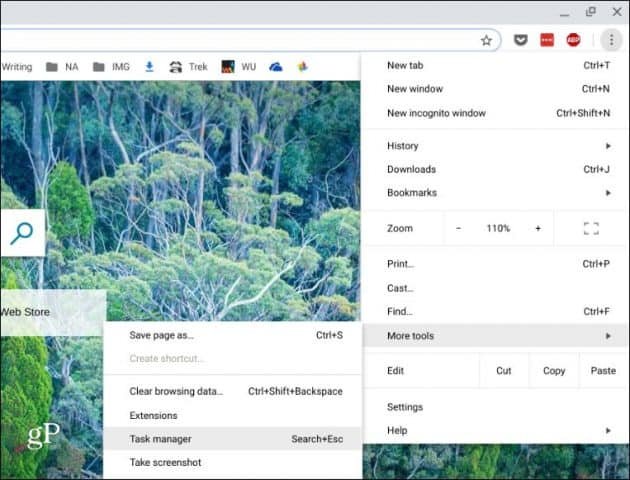
- Open Task Manager: Press Shift + Escape simultaneously. This opens the Chrome OS Task Manager, which functions much like its counterpart on a Windows PC, showing all running processes.
- Identify Culprits: In the Task Manager, look for applications, extensions, or processes that are labeled "Not responding" or are consuming a disproportionately high amount of CPU or memory resources.
- End Process: Select the identified problematic task, then click the "End process" button. This will forcefully close the misbehaving item.
- Uninstall Problematic Extensions/Apps: If a recently installed extension or application seems to be the consistent cause of freezes, consider uninstalling it. You can manage extensions by typing
chrome://extensionsinto your browser, or uninstall apps through the Chrome Web Store or Google Play Store.
2. Refresh the Chrome Browser
Sometimes, the issue isn't with the entire operating system but specifically with the Chrome browser itself. Press Ctrl + Shift + R simultaneously. This shortcut will refresh all open Chrome browser windows and tabs, which can sometimes resolve minor freezes or display glitches without requiring a full system restart.
3. Disconnect External Devices
Peripherals like USB flash drives, external hard drives, external monitors, or even actively connected Bluetooth devices can occasionally cause conflicts, draw too much power, or trigger software bugs that lead to system instability. Unplug or disconnect everything external from your Chromebook and then see if it responds normally.
4. Perform a Normal Restart (If Still Semi-Responsive)
If your Chromebook is merely sluggish or slow to respond, rather than completely frozen, always try a standard restart first. Click the time/status area in the bottom-right corner of your screen to open the Quick Settings panel, then click the power icon. This ensures a proper shutdown and a fresh start, allowing the system to save data and close processes gracefully. This method is always preferred over a forced shutdown to protect your data and system integrity. For more on proper shutdowns, see our guide on how to properly turn off your Chromebook.
5. Drain the Battery (A Last-Ditch Effort for Stubborn Freezes)
This is a very rare and extreme scenario, but if your Chromebook is completely unresponsive even after trying the power button and keyboard shortcuts, and you cannot physically remove the battery, you might have to simply wait it out. Disconnect all power sources (charger, external devices) and allow the battery to completely drain. This could take several hours, depending on the remaining charge. Once it's fully discharged and the device is completely off, wait a few more hours (to ensure any residual charge is gone), then plug it back in and try to power it on. This acts as a very "hard" reset of the entire system.
Deeper Dives: Advanced Troubleshooting for Persistent Issues
If your Chromebook continues to misbehave, freezes frequently, or won't boot up properly even after force shutdowns and initial troubleshooting, it's time to consider more robust solutions. These go beyond simple restarts and target deeper hardware or software issues.
1. Hard Reset (Hardware Reset)
A hard reset, also commonly referred to as a hardware reset or an EC (Embedded Controller) reset, is fundamentally different from a factory reset (Powerwash). This action restarts the core hardware components of your Chromebook, such as the battery, processor, and memory controller, without deleting any of your personal data or local files. It's often effective for fixing issues like:
- The Chromebook not turning on or showing a blank screen.
- Peripheral devices (trackpad, keyboard, USB ports) not functioning correctly.
- Problems with charging or battery detection.
- Persistent, unexplained freezing or general system instability that isn't solved by simple restarts.
How to Perform a Hard Reset:
- Turn Off: Ensure your Chromebook is completely powered off. If it's frozen, use one of the force shutdown methods described earlier.
- Locate Keys: Identify the Refresh key (the circular arrow icon) on the top row of your keyboard.
- Press and Hold Refresh: Press and hold the Refresh key down firmly.
- Press Power: While continuously holding the Refresh key, press the Power button once.
- Hold and Release: Continue holding only the Refresh key until your Chromebook begins to start up (you might see the screen flicker, a logo appear, or a system message, usually after about 5 seconds). Once it shows signs of life, release the Refresh key.
Your Chromebook should now boot up normally. If the issue was related to a hardware component needing a reset, this action often resolves it.
2. Powerwash (Factory Reset)
If software glitches, corrupted user profiles, or persistent performance issues continue to plague your Chromebook, a Powerwash might be the necessary solution. This is a factory reset that effectively wipes all local data (meaning files stored in your Downloads folder, local app data, saved Wi-Fi networks, and user settings) and user profiles, returning your Chromebook to its original, out-of-the-box state. The good news is that anything synced to your Google Account (like Google Drive files, Google Docs, Gmail, and Chrome browser settings) will be automatically restored when you sign back in.
Important: Before performing a Powerwash, make absolutely sure to back up any critical local data (especially files in your Downloads folder) to your Google Drive or an external storage device. Once the Powerwash is initiated, this data will be permanently erased.
How to Perform a Powerwash:
- Sign Out: If you can, log out of your Chromebook account.
- Shortcut Combo: From the login screen (or after signing out), press and hold Ctrl + Shift + Alt + R simultaneously.
- Initiate Restart: When the "Reset this Chrome device" window appears, click the Restart button.
- Confirm Powerwash: After your Chromebook restarts, a new window will appear, often giving you the option to "Powerwash" or "Powerwash and Restore." Click Powerwash, and then click Continue to confirm your decision.
- Follow On-Screen Instructions: Your Chromebook will begin the reset process, which may take a few minutes. Once it reboots, you'll be guided through the initial setup steps, similar to when you first got your Chromebook. Sign in with your Google Account to restore your cloud-synced data.
3. Recover Chrome OS (If All Other Methods Fail)
This is considered the most drastic option, the "nuclear button" for Chromebook issues. It's reserved for severe system corruption where your Chromebook won't boot at all, a Powerwash fails to resolve the problem, or you encounter persistent messages like "Chrome OS is missing or damaged." This process completely reinstalls a fresh copy of the Chrome OS onto your device, effectively wiping everything. To do this, you'll need another working computer (Windows, Mac, or Linux) and a USB flash drive (at least 8GB) or an SD card.
Steps to Recover Chrome OS:
- On a Working Computer:
- Open the Chrome browser on the working computer.
- Search for and add the "Chromebook Recovery Utility" extension from the Chrome Web Store. Install it.
- Insert your chosen USB flash drive (8GB or larger) or SD card into this computer. Make sure it contains no important data, as it will be completely erased.
- Open the Chromebook Recovery Utility.
- Follow the clear, on-screen instructions to select your specific Chromebook model from a list. The utility will then download and write the appropriate Chrome OS recovery image to your USB drive/SD card. This process can take some time, depending on your internet speed.
- Safely remove the USB drive/SD card once the utility confirms it's ready.
- On the Frozen/Damaged Chromebook:
- Ensure the problematic Chromebook is completely off and unplugged from its charger.
- Enter Recovery Mode: Press and hold Esc + Refresh + Power simultaneously.
- When the screen displays the "Chrome OS is missing or damaged. Please insert a recovery USB stick or SD card" message, release the keys.
- Insert the USB flash drive/SD card (containing the recovery image) into the frozen Chromebook's appropriate port.
- The recovery process should start automatically. It will take some time, and your Chromebook might restart multiple times. It is critical not to remove the recovery media or power off the Chromebook during this entire process, as this could lead to further damage.
- Once the recovery is complete, you'll be prompted to remove the recovery media. Your Chromebook will then reboot to a fresh, factory-installed Chrome OS.
Understanding the Difference: Shutdown, Force Shutdown, Hard Reset, & Powerwash
These terms are often used interchangeably, leading to confusion, but they refer to distinct actions with very different impacts on your Chromebook's operation and data.
- Normal Shutdown: This is the ideal and recommended way to turn off your Chromebook (e.g., clicking the power icon in the system status tray). The system gracefully closes all open applications, saves any pending data, and meticulously prepares all components for power-off. It ensures maximum data integrity and a smooth restart.
- Force Shutdown: This is an abrupt, immediate cut of power to the system (e.g., holding the power button for 5-10 seconds). It's an emergency measure for when your device is completely unresponsive. The primary consequence is the potential loss of any data that was not saved locally or synced to the cloud before the sudden power cut.
- Hard Reset (Hardware Reset): This action restarts the core physical components of your Chromebook's hardware (like the CPU, RAM, and embedded controller/battery management system) without erasing any of your personal user data or local files. It's often used to fix hardware-related issues such as boot problems, non-functioning peripherals (trackpad, keyboard), or charging issues that aren't resolved by a simple reboot.
- Powerwash (Factory Reset): This is a complete software reset that wipes all local data, user profiles, and customized settings from your Chromebook, returning the Chrome OS to its original factory state. While anything synced to your Google Account is safe, all locally stored files (e.g., in your Downloads folder) will be permanently deleted. It's used for major software problems, preparing the device for sale, or clearing corrupted user profiles.
Getting Back to Work: What to Do After a Force Shutdown
Successfully forcing a shutdown is just the first step in resolving an issue. Here’s what you should do next to ensure your Chromebook is healthy, stable, and ready for action.
- Restart and Observe Closely: Power on your Chromebook as usual. Pay close attention to how it boots up, its performance, and responsiveness. Does it still freeze, even momentarily? Are there any new error messages or unusual behaviors? This initial observation is crucial for identifying if the problem persists.
- Check for System Updates Immediately: Once you're back in Chrome OS, it's a good practice to check for any pending system updates. Outdated software can often be a root cause of instability, bugs, and performance issues. Go to
Settings > About Chrome OS > Check for updates. Install any available updates and restart if prompted. - Review Recent Activity: Take a moment to think about what you were doing right before the freeze occurred.
- Did you install a new app or extension?
- Were you on a particular, perhaps resource-heavy, website?
- Did you have an unusually large number of tabs open?
- Did you connect a new peripheral or external device?
Identifying recent changes can help pinpoint potential culprits.
- Clear Browser Cache and Data: Sometimes, accumulated browser cache, cookies, or other site data can lead to slowdowns or conflicts. Go to
Settings > Privacy and security > Clear browsing data. Consider clearing data for "All time" if you suspect it's a long-standing issue. - Run a Quick System Diagnostic: While Chrome OS doesn't have a dedicated "diagnostic mode" like some other operating systems, you can check basic system health indicators. Type
chrome://systeminto your browser for a detailed log of system information (useful if you need to contact support), orchrome://managementto check for policies if your Chromebook is a managed device (e.g., school or work). - Backup Regularly (If You Weren't Already): If the force shutdown resulted in lost work, make it an absolute habit to regularly back up important local files to Google Drive or another reliable cloud service. This practice minimizes the impact of future freezes, accidental shutdowns, or even device failure.
Prevention is Key: Keeping Your Chromebook Running Smoothly
While knowing how to force shut down your Chromebook is a vital emergency skill, preventing the need for it in the first place is always the better strategy. A little proactive maintenance goes a long way.
- Don't Overload Tabs and Windows: Too many open tabs, especially those running resource-intensive applications or streaming media, can bog down your Chromebook's performance, regardless of how much RAM it has. Get into the habit of closing tabs you're not actively using.
- Manage Extensions Wisely: Each Chrome extension consumes system resources. Install only the extensions you truly need and use regularly. Periodically review your installed extensions (type
chrome://extensionsin the browser) and remove any you no longer use or that seem suspicious. - Keep Your OS Updated: Ensure your Chrome OS is always kept up to date. Google frequently releases updates that include crucial bug fixes, performance improvements, and vital security patches that enhance overall stability.
- Monitor Local Storage: While Chromebooks primarily rely on cloud storage, local storage can still get full, especially if you download many files. A full local drive can impact performance. Regularly check your Downloads folder and delete unnecessary files, or move them to Google Drive.
- Restart Periodically: Even though Chromebooks can go a long time without a full restart, giving your device a proper reboot every few days can help clear out temporary glitches, refresh system processes, and keep it running smoothly. As mentioned, a proper restart for your Chromebook is always a good practice, even if just to refresh things.
Dealing with an unresponsive Chromebook can be frustrating and momentarily alarming, but with the right knowledge and a clear understanding of the steps involved, you can quickly and safely resolve the issue. By knowing when to use a force shutdown, how to execute it, and what crucial steps to take afterward, you'll ensure your Chromebook remains a reliable, efficient tool for all your daily tasks.